 GlideMix
GlideMix Manual
For GlideMix Beta 1.1 on macOS and Windows. Quick answers are in the FAQ; for anything else, ask in Discord or write to support@glidemix.com.
GlideMix is a DJ mixing studio. Instead of mixing live on two decks, you arrange your songs on a timeline, the way a producer arranges a track in a DAW, and decide exactly when the next song comes in, how long the blend lasts and which effects ride on it. Then you play the mix, perform it live with a headphone cue, broadcast it, or export the finished file.
1. Install and first start
What you need
- Mac: Apple Silicon (M1 or newer), macOS 13 or later.
- Windows: Windows 10 or 11, 64-bit.
- Your music as files: MP3, WAV, AIFF, FLAC, M4A/AAC, OGG and more. Streaming services can't be used.
- For Perform with a headphone cue: a sound card with four outputs (a DJ controller or audio interface).
macOS
- Download the DMG from the Download page, open it and drag GlideMix to Applications.
- Open GlideMix. It isn't signed by Apple yet, so macOS says it can't check it: click Done.
- Go to System Settings → Privacy & Security, scroll down and click Open Anyway. You only do this once.
- Allow access to the folders your music is in when macOS asks.
Windows
- Run the setup. It installs for your user only (in
%LOCALAPPDATA%\Programs\GlideMix), no administrator password needed. - If SmartScreen says "Windows protected your PC", click More info → Run anyway.
- On Windows 11 with Smart App Control on, unsigned apps are blocked without a "Run anyway". Check it in Windows Security → App & browser control.
Faster analysis on Windows: Windows Defender scans every song GlideMix reads. In Windows Security → Virus & threat protection → Manage settings → Exclusions, add the GlideMix folder and your music folders. On a laptop, use the best-performance power mode while analysing.
First start
Getting started asks for the theme (light or dark, or follow the system), the accent colour and the workspace layout. Everything can be changed later in Preferences. Then GlideMix asks whether to check your audio plugins now or later, and shows the licence window: Continue with the demo, buy, or enter your key.
Last, choose your sound card in Audio setup at the top of the window.
Uninstall
- Mac: drag GlideMix from Applications to the Bin. Your library is in
~/Library/Application Support/Glidemix; delete that folder too for a completely fresh start. - Windows: Settings → Apps → Installed apps → GlideMix → Uninstall. Your library is in
%APPDATA%\GlideMix.
2. A tour of the window
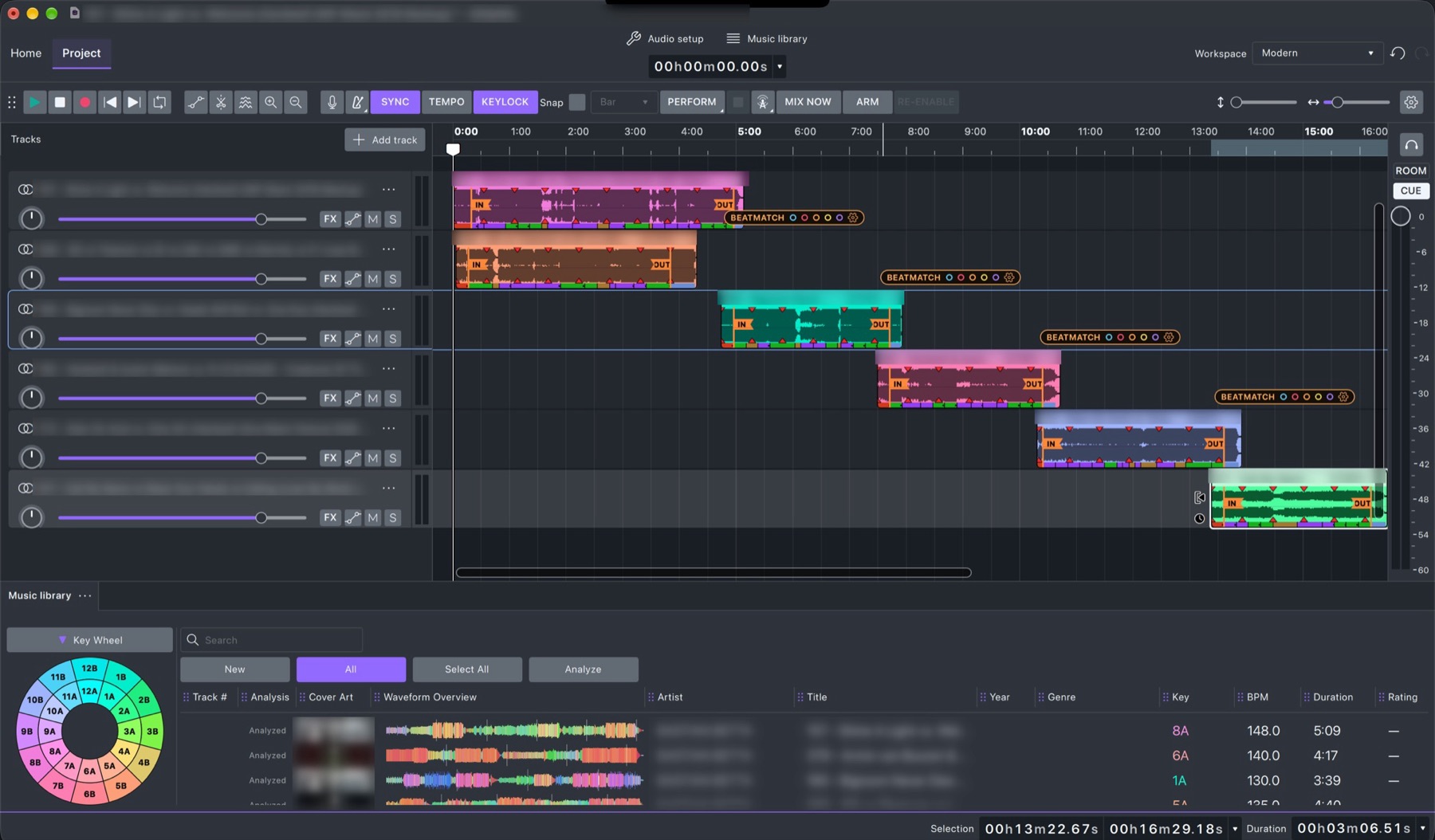
- Home has your recent projects and the Learn page (getting started, what's new, shortcuts, Discord, licence). Project is where you mix.
- At the top: Audio setup (sound card and outputs), Music library (shows or hides the library), the time display, and the Workspace menu.
- The toolbar: play, stop, record, rewind, loop; editing tools; and the DJ buttons:
| Button | What it does |
|---|---|
| SYNC | Locks songs to the grid: the Snap value, or a bar when Snap is off. Mix Now lands on it too. |
| TEMPO | Shows the master tempo line above the tracks. |
| ENERGY | Shows the energy of the mix (1–10) over time, under the tempo line. |
| KEYLOCK | On: tempo changes keep the pitch. Off: songs play faster and higher, like a turntable. |
| Snap | Snap to the grid while moving and cutting: bar, beat or finer. |
| PERFORM | Plays the mix to the audience (red playhead, outputs 1–2); Play becomes your headphone cue. |
| Broadcast (tower) | Opens the Broadcast window to go on air. |
| MIX NOW | Pulls the next song forward so it mixes in at the next bar or phrase. |
| ARM | Records knob moves into automation while the mix plays. |
| RE-ENABLE | Turns automation back on for controls you moved by hand during playback. |
- Tracks on the left: one lane per song, with volume, FX, automation, mute and solo. The ⋯ button opens the track menu.
- On the right: the ROOM and CUE meters and levels.
- At the bottom: the Music library.
3. The music library
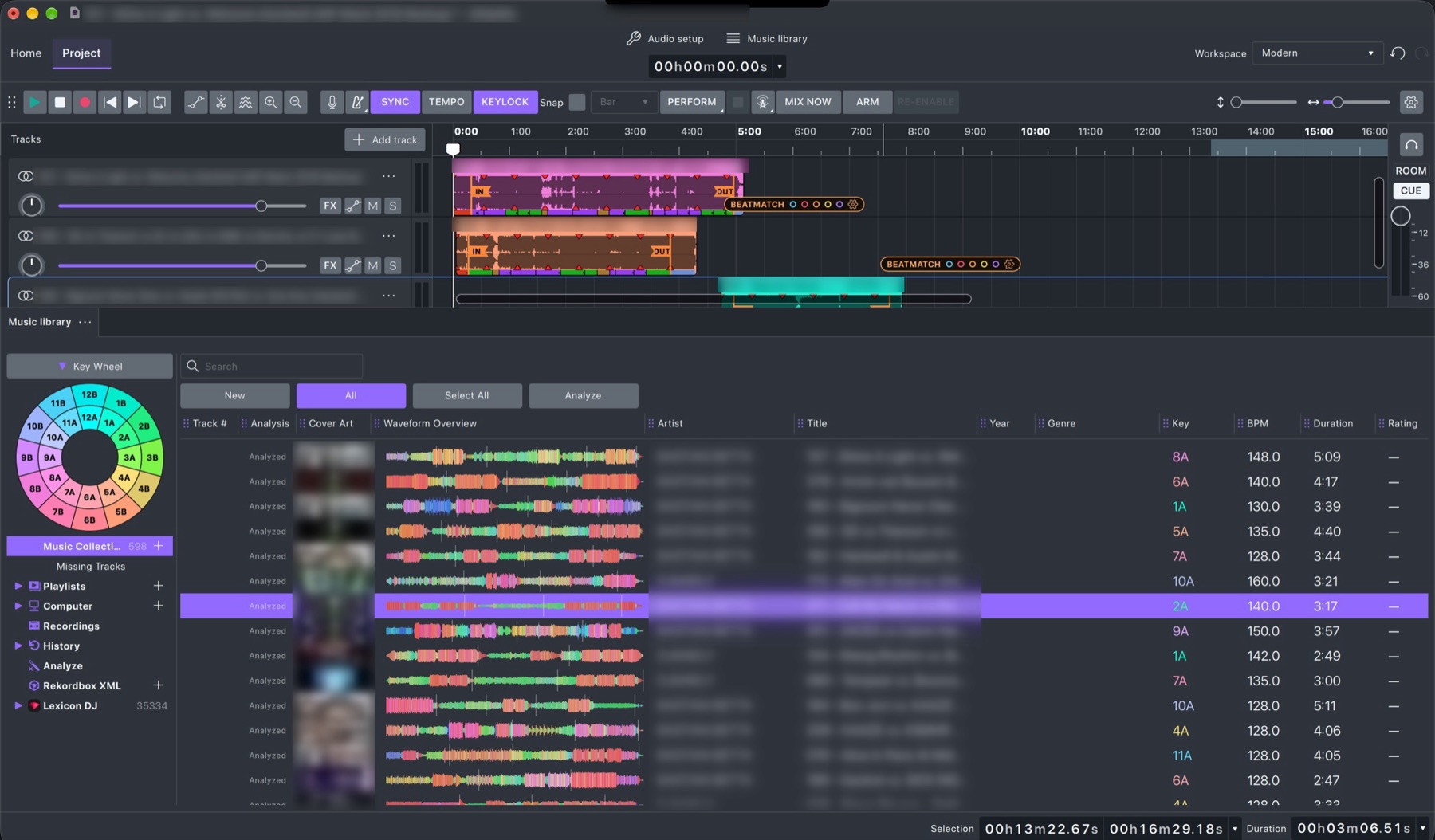
Adding music
- Preferences → Music library → Add a music folder. GlideMix scans it with all its subfolders at once.
- Or + next to Music Collection (Add Folder to Library…), or drag folders from Finder or Explorer onto the library.
- Watch folders: while GlideMix runs it watches your music folders. A song copied or downloaded into one appears a few seconds later and, with Analyse new songs automatically on, is analysed right away.
- Computer browses your disks without adding anything: Quick Links (Music, Downloads, Desktop, Documents and your own with +) and Devices (USB sticks and drives).
- Missing Tracks lists songs whose file has moved or been deleted.
rekordbox and Lexicon
If you use Lexicon DJ, its whole library shows in the sidebar with its playlists, beat grids, keys, energy, cue points and cover art.
rekordbox: in rekordbox, use File → Export Collection in xml format. In GlideMix, click Rekordbox XML in the sidebar (or right-click it → Import from Rekordbox XML…) and choose the file. While a big XML loads, the row shows Loading 42%; then the song count appears and its playlists and folders open underneath, like Lexicon.
GlideMix only reads both libraries; it never changes their databases. Their beat grids and keys are used as they are, which also makes analysis much faster. To copy rekordbox songs into your own Music Collection, use Copy Rekordbox XML into Music Collection….
Analysis
Analysis finds each song's tempo, beat grid, key, phrases (Intro, Up, Down, Chorus, Outro…), energy (1–10) and its colour waveform.
- Choose New (songs never analysed) or All.
- Select All, then Analyze. You can keep working; analysis runs in the background.
- Stop Analysis stops it; finished songs keep their results.
The Analyze view in the sidebar lists songs that still need it. Songs from rekordbox or Lexicon start from their grid and key. A song without an energy rating gets one automatically once it is on the timeline.
Finding songs
- Search in the box above the list. Search terms like
bpm:128,~bpm:128(near 128) andkey:8Awork too, in any key notation (8A,1m,Am). - Click a column header to sort; drag a header to move its column.
- The Key Wheel (Camelot) shows only the keys you click; Reset shows everything again.
- Preview a song without loading it: hover its cover art and click play. Click the waveform to jump. The small waveforms show the song's cue points.
- Select a song and the sidebar marks every playlist and smart playlist that contains it.
- Each list remembers its sort, scroll position and selected song while GlideMix runs.
- History lists songs you have used in a project; Recordings, your exported mixes.
Tags, ratings and colours
- Right-click songs → Edit Tags…: title, artist, album, genre, year, comment and more, for one song or many. The tags are written into the music files, so rekordbox and Lexicon pick them up.
- Click the stars to rate; right-click → Color for rekordbox's eight track colours. Ratings and colours work on Lexicon and rekordbox songs too (stored in GlideMix).
- Preferences → Music library → Key notation sets how keys are written: Lancelot (8A), OpenKey (1m), traditional (Am) or both.
Playlists
- + next to Playlists makes a playlist or a folder. Drag songs onto a playlist to add them.
- Drag playlists to reorder them or move them into folders. Dropping a Finder/Explorer folder tree onto a playlist folder builds the same tree of playlists.
Smart Playlists
New Smart Playlist… makes a playlist that fills itself from rules: genre, artist, BPM, BPM within ±%, key, key mixes with (harmonic neighbours), energy, rating, colour, year, bitrate, date added, last played, play count and more, from your collection, Lexicon, rekordbox or all of them. Edit it any time with Edit Smart Playlist….
Right-click Smart Playlists → Generate Smart Playlists makes one smart playlist per genre, per key or per energy level in one go ("Genre · Techno", "Key · 8A", "Energy · 7"). Delete Generated Smart Playlists… removes them again.
Duplicates
Duplicates under Music Collection lists songs that are in your collection more than once (same artist and title, same length), side by side with the best copy first: WAV/AIFF/FLAC before MP3, then the higher bitrate. Select extra copies selects all but the best, ready for Remove from Library or Delete from Disk.
Export from the library
- Export to Folder… on a playlist copies its songs in order into a folder, with a track list and an
.m3u8. - Export to rekordbox XML… writes your songs and playlists with tags, stars, colours, beat grids and hot cues where each phrase starts, for rekordbox and Lexicon to import, ready for CDJs.
4. Building a mix
Songs on the timeline
- Drag a song from the library onto the timeline, or double-click it to add it at the end of the mix.
- Each song gets its own lane, lands on the beat grid and shows its phrases along the bottom of the clip.
- The next song lands beatmatched: stretched to the mix tempo, locked to the bar, with its IN on the previous song's OUT.
Sync, Snap and the beat grid
With SYNC on, songs move in steps of the Snap value (a bar when Snap is off), so they always stay on the beat. The bar and beat lines run behind the lanes (View → Show beat grid). Hold the clip and move it freely by turning SYNC off.
IN and OUT
Every song has an IN marker (where it mixes in) and an OUT marker (where it mixes out). When you move a song onto another, its IN snaps magnetically to the other song's OUT and the two are linked with a BEATMATCH blend. Drag the markers to make the blend longer or shorter.
Mix Now
MIX NOW pulls the next song forward so it comes in at the next bar or the next phrase (a drop lands on a drop), with the transition chosen in Preferences → Transitions.
The tempo line
- TEMPO shows the master tempo line. Draw on it or drag its points to change the tempo of the whole mix over time.
- + and − make the whole mix 1 BPM faster or slower, keeping the line's shape. Reset starts over.
- Follow tracks: each song plays at its own tempo, and where songs overlap the tempo glides from one to the next. A song more than 8% away from the mix (122 into 140) turns this on by itself. Drawing on the line turns it off and keeps your line.
- Right-click a tempo point to choose how the glide moves: S-curve (smooth, like a hand on the pitch fader) or straight.
Key and Keylock
- KEYLOCK on: tempo changes keep the pitch. Off: songs play like on a turntable.
- On an overlap, the clip menu's Match key transposes a song to fit the other one, and Transpose shifts it by semitones.
- Use the key wheel and smart playlists with mixes with to find songs that fit.
Energy
Every song has an energy rating from 1 (calm) to 10 (peak time), shown as Energy 7 in the library. Lexicon songs keep Lexicon's rating; songs without one get it from GlideMix's analysis, automatically once they are on the timeline.
Press ENERGY to see the energy of the whole mix over time under the tempo line, blue (calm) to red (peak): how your set builds, where it drops, and where two loud songs sit next to each other. Breakdowns and fades show as dips.
Transitions
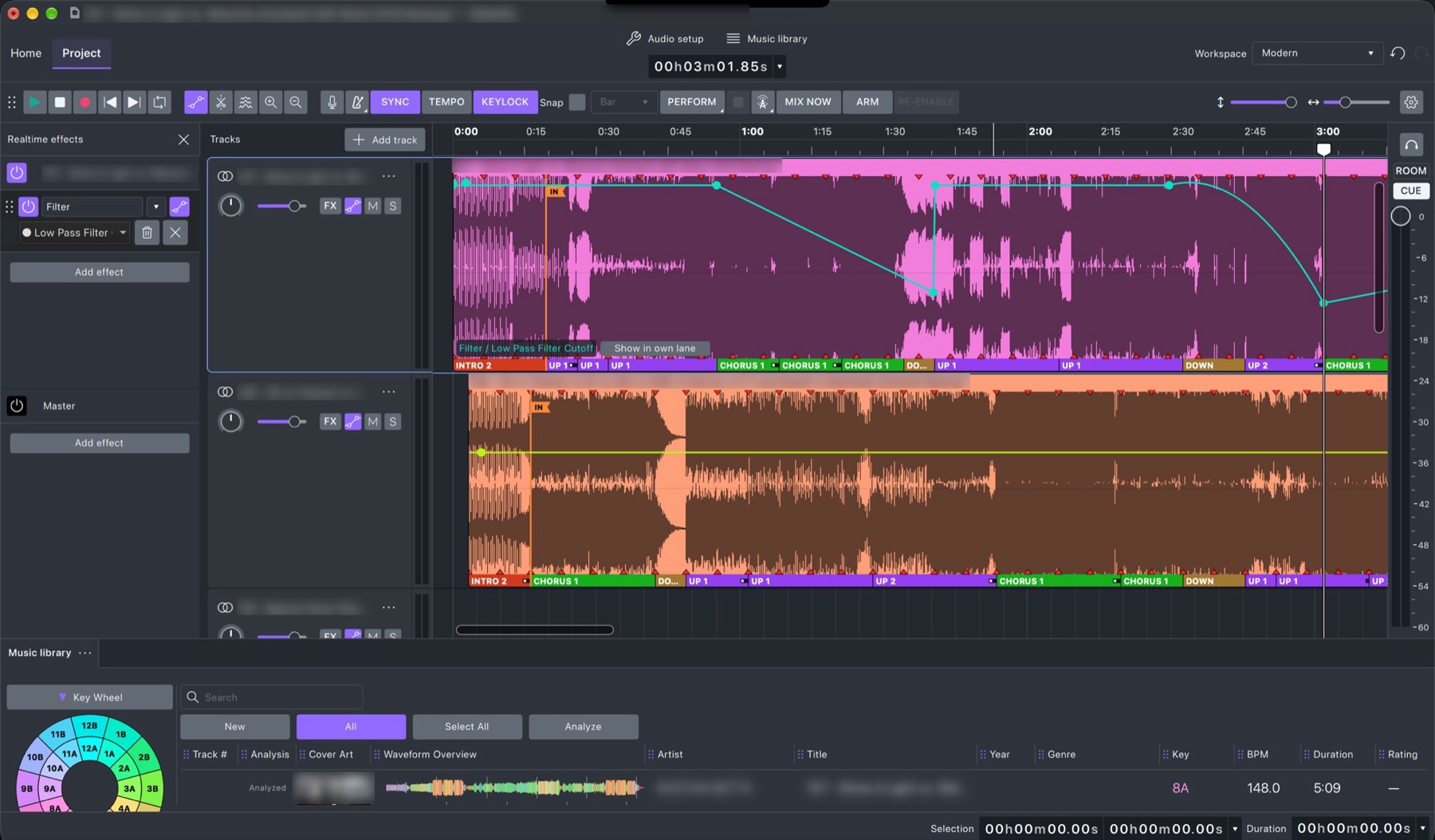
Overlap two songs to make a transition. Right-click the overlap to choose one: crossfades, EQ and bass swaps, filter sweeps, risers, echo and reverb outs, and your own.
A transition shapes four lanes, Volume, Bass, Mids and Highs, each as a crossfade, fade in, fade out or swap, with a fade shape: equal power, linear, S-curve, early or late. A bass swap can leave out the incoming bass for a few beats so the low end never doubles up. Three effects lanes add DJ effects. Build and save your own in Preferences → Transitions (Duplicate a built-in to start).
Beat grid editor
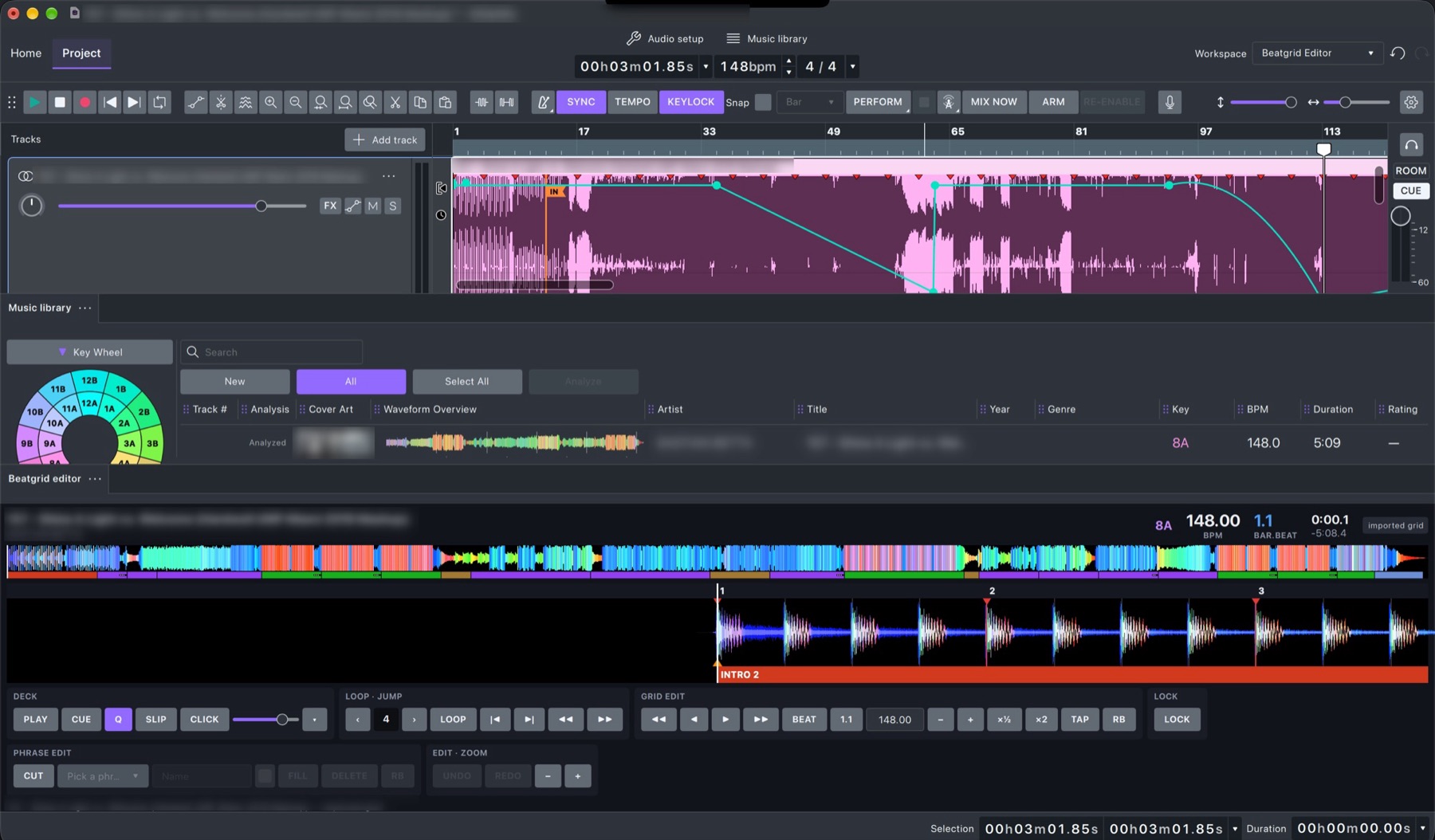
If a grid is off, open the clip menu → Open in Beatgrid editor. Like rekordbox's grid edit, it shows the whole song's colour waveform, a zoomed beat view with bar numbers, and the phrases.
- Nudge the grid earlier or later, make it faster or slower, move bar 1 one beat earlier or later, halve or double, tap the tempo, or take rekordbox's grid.
- Edit the phrases shown under the waveform.
- Loop a part and turn on the metronome to check by ear. Every change can be undone.
5. Effects, plugins and automation
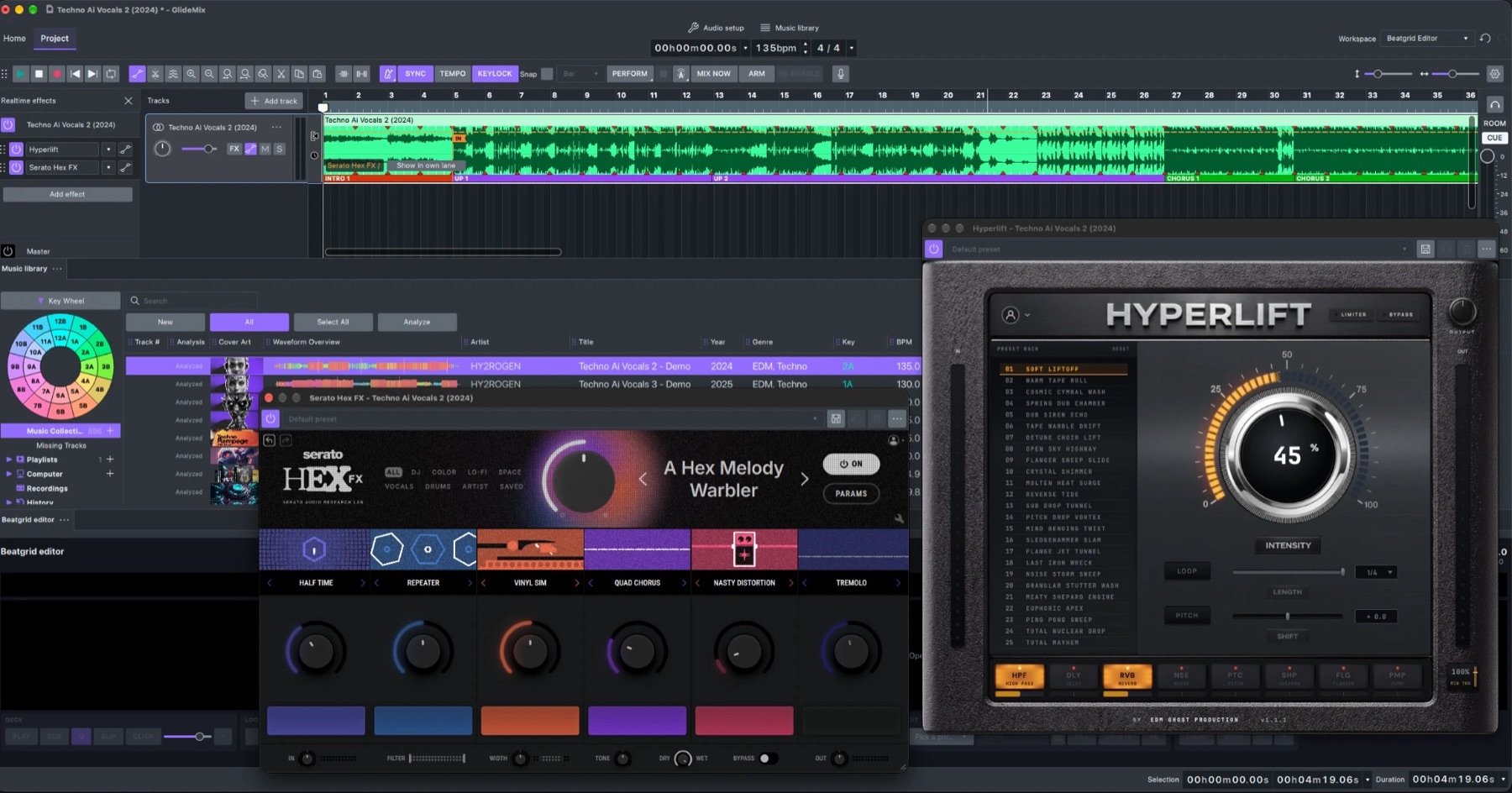
- Built-in DJ effects: about two dozen, tempo-synced, with presets: filter, echo, dub echo, ping pong, reverb, flanger, phaser, roll, tape stop, sweep, bitcrusher, EQs and more.
- Your plugins: VST3 on Mac and Windows, Audio Unit on Mac. Click FX on a track (a song or a stem), or on the master, to add them. Open the plugin's own window, or turn its knobs inside GlideMix. Plugins are checked once; new ones are found at start-up.
- Automation: every knob of every effect and plugin can change over time. Click the automation button on a track to see the lines, then draw points on them. Lanes can also sit under a track of their own.
- Record it: press ARM, play the mix and move a knob: the move is written into the line. Moving a control by hand during playback pauses its automation; RE-ENABLE turns it back on.
6. Stems
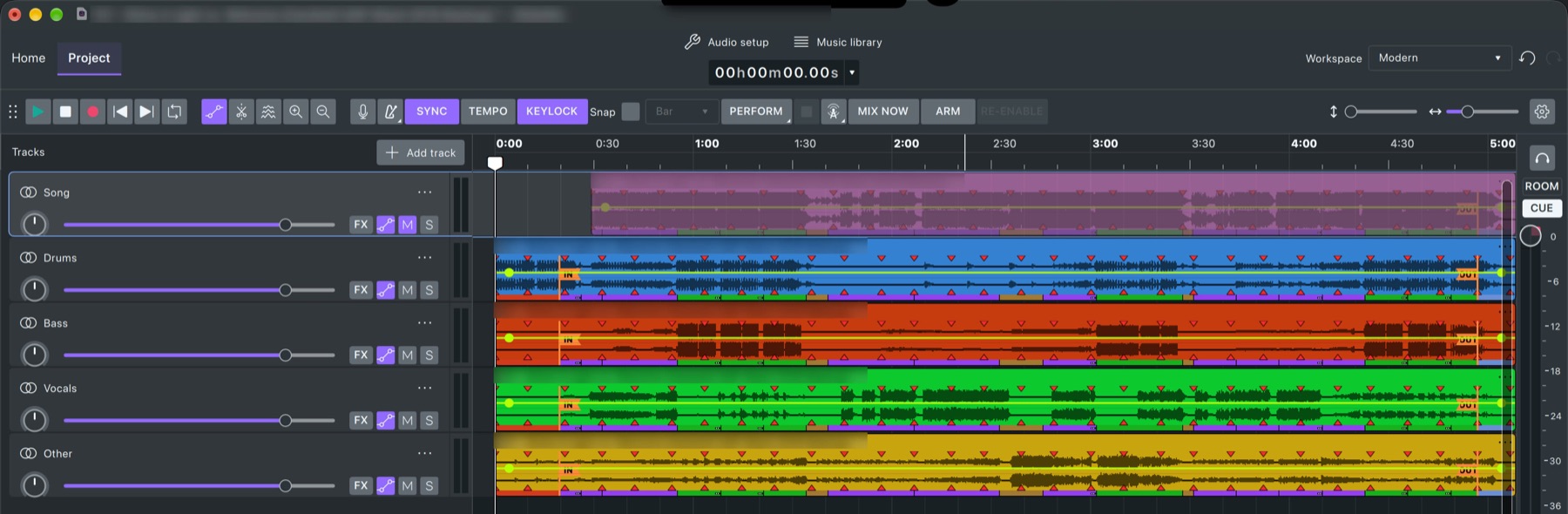
Open the track menu (⋯ next to the track name, or right-click the track header) → Separate stems. The song is split into drums, bass, vocals and other, each on its own lane under the original, in sync, with the grid and phrases. The original is muted, not removed, and the whole thing is one undo step.
- The stems engine is a free download (about 1 GB) the first time; install it from Preferences → Stems.
- It runs on your own computer; nothing is uploaded. On an Apple Silicon Mac a song takes about half a minute.
- Separated songs are kept in a cache (10 GB by default), so the same song is instant next time.
7. Perform
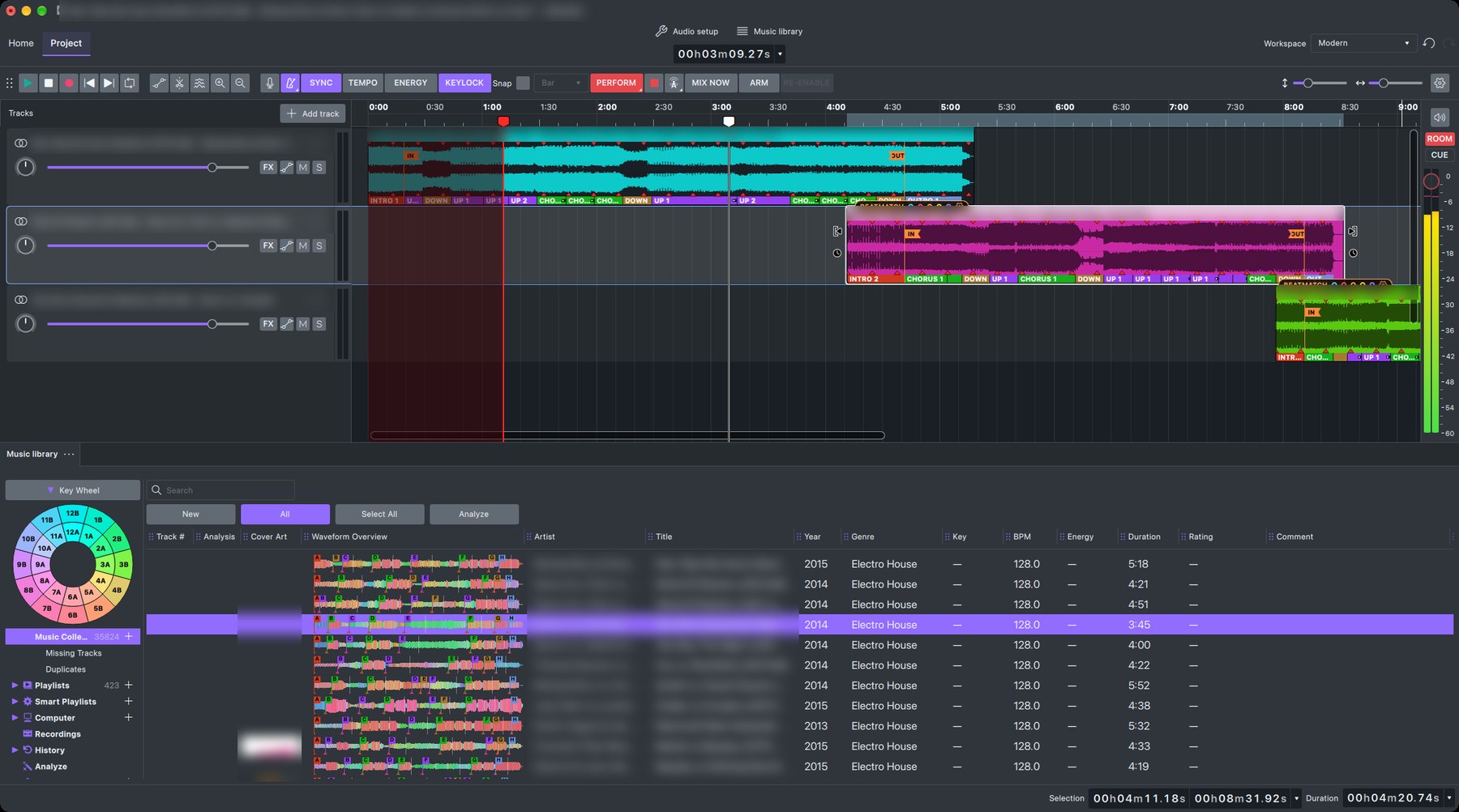
Perform turns GlideMix into a mixer with a headphone cue:
- Press PERFORM: the red playhead plays the mix to the audience on outputs 1–2.
- Play now moves the white cue playhead on outputs 3–4 (your headphones): listen ahead to the next blend while the room hears the mix.
- You can keep editing while it plays: move songs, change a fade, pull the next song in with Mix Now.
- The Stop button beside PERFORM stops the audience playhead. ROOM and CUE have their own meters and levels.
- Set the headphone outputs in Audio setup or Preferences → Audio settings → Headphone cue.
8. Live broadcasting
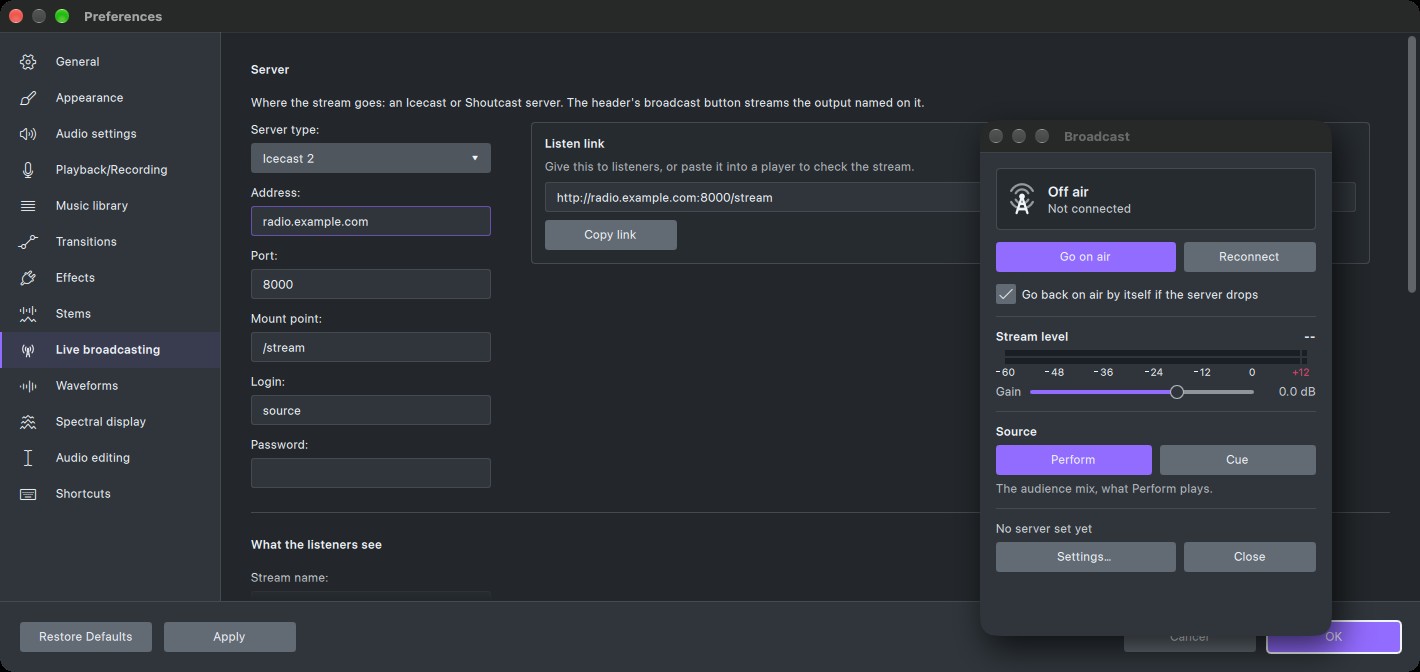
- Get the details from your radio host: server type (Icecast or Shoutcast), address, port, password, and mount point (Icecast) or stream ID (Shoutcast 2).
- Enter them in Preferences → Live broadcasting, with what listeners see: stream name, genre, website.
- Click the broadcast button in the toolbar to open the Broadcast window and press Go on air.
- Share the Listen link.
- Source: Perform (the audience mix, the normal choice) or Cue (for a test stream).
- Watch the stream level and set the Gain. MP3 at 128 or 192 kbps suits most hosts.
- The title of the song playing goes to your listeners as Artist – Title.
- If the server drops, GlideMix goes back on air by itself; it stops if the server refuses the password.
9. Export
File → Export audio writes the mix as WAV, AIFF, MP3, FLAC, OGG and more. Exports sound exactly like playback, with the tempo line, transitions and automation.
- Every export goes through a true-peak limiter at −1 dBTP, so it never clips, also after MP3 encoding.
- After the export a loudness report shows LUFS, true peak and what Spotify, YouTube and Apple Music will do with it.
- A tracklist comes with every export: a timestamped
.txtfor Mixcloud and show notes, and a.cuesheet. - Exported mixes are listed under Recordings in the library.
Demo: exports are MP3 at 96 kbps, up to 20 minutes, and a voice says "Glide Mix demo" every two minutes. A licence removes all of that.
10. Preferences
On the Mac: GlideMix → Preferences…. On Windows: Settings → Preferences. Cancel undoes everything you changed in the dialog.
| Page | What's on it |
|---|---|
| General | Update check, the folder for temporary files and unsaved projects, free disk space, FFmpeg. |
| Appearance | Light or dark theme, accent colour, high contrast, clip style, font and size. |
| Audio settings | Sound card, outputs, headphone cue outputs, sample rate, buffer size and latency, meter range. |
| Playback/Recording | Playback quality and dithering, input monitoring, recording lead-in. |
| Music library | Music folders, watch folders and automatic analysis, rescan at start-up, writing tags to files, table look, key notation, search settings, and what happens to audio files that aren't in your library. |
| Transitions | Where Mix Now lands (bar or phrase) and which transition it uses; build, duplicate and delete your own transitions. |
| Effects | Which effects and plugins are shown, how the effect menu is organised, DJ EQ crossover frequencies, extra VST3 folders. |
| Stems | Install the stems engine, GPU or CPU, quality, cache size and Clear cache. |
| Live broadcasting | Server, what listeners see, source and MP3 bitrate. |
| Waveforms | Classic or DJ-style colour waveforms, lane background, beat lines. (A stereo track can also be drawn as one single wave: track menu → Single wave.) |
| Spectral display | Colours and scale of the spectrogram view. |
| Audio editing | What happens when you delete or paste part of a clip, and other editing behaviour. |
| Shortcuts | Change any keyboard shortcut. |
11. Licence and updates
- The download is the free demo with every feature. A licence (€49 during the Beta, normally €89, one-time) unlocks it:
Help → Licence…, paste the key from the order email (it starts with
GLIDEMIXPRO-), Activate. - One licence works on three computers, Mac and Windows mixed. To move it, free a computer in Help → Licence… or in the customer portal (the Access purchase link in the order email).
- You need to be online once to activate. After that GlideMix works offline.
- GlideMix checks for updates once a day (switch it off in Preferences → General) and shows what's new. Help → Check for update checks now. All 1.x updates are free.
12. Keyboard shortcuts
Help → Keyboard shortcuts shows every shortcut, searchable, and lets you change them (also in Preferences → Shortcuts). A few to start with:
| Key | Action |
|---|---|
| Space | Play / stop |
| ⌘/Ctrl + Z | Undo (everything, including beat grid changes) |
| A | Show automation lines |
| ⌘/Ctrl + S | Save the project |
13. Problems and logs
- Crackles: raise the buffer size in Preferences → Audio settings.
- A song is off the beat: fix its grid in the beat grid editor; the fix is kept for every project.
- A song shows "—" for key or BPM: it hasn't been analysed yet: select it and click Analyze.
- Songs are missing: look in Missing Tracks, and use Relink in Preferences → Music library if a music folder moved.
To report a bug, tell us what you did, what you expected and what happened, with a screenshot if you can, in
#bug-reports on Discord or to support@glidemix.com.
Attach the newest log file:
- Mac:
~/Library/Application Support/Glidemix/Glidemix/logs(Finder: Go → Go to Folder…) - Windows:
%LOCALAPPDATA%\Glidemix\Glidemix\logs(paste it into the Explorer address bar)